GeneSonic Pro Coming Soon Explore Now >

Cart

Your cart is currently empty.

Continue shopping

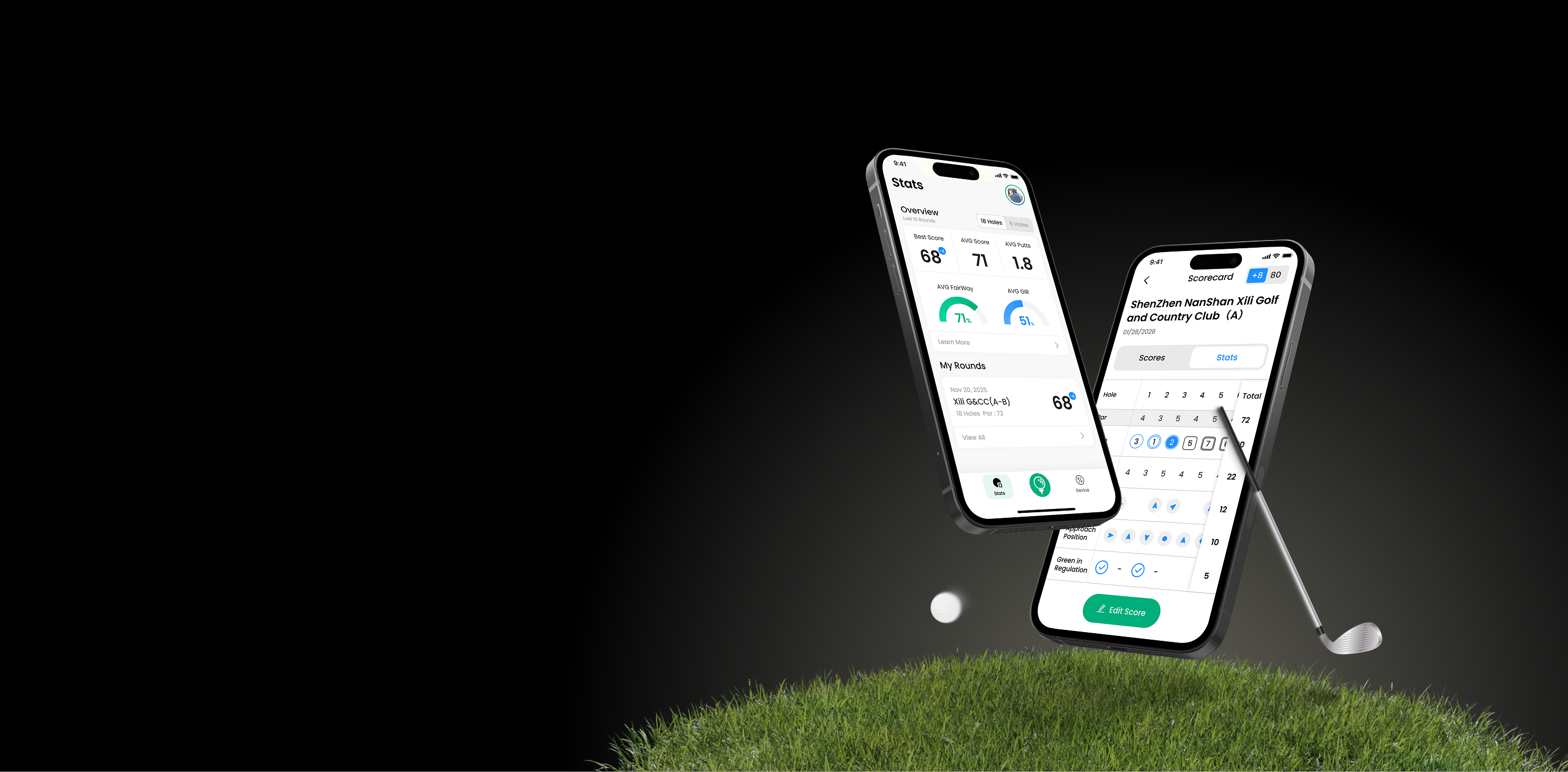
MILESEEY GOLF APP

Your Smart Companion for Golf Enthusiasts

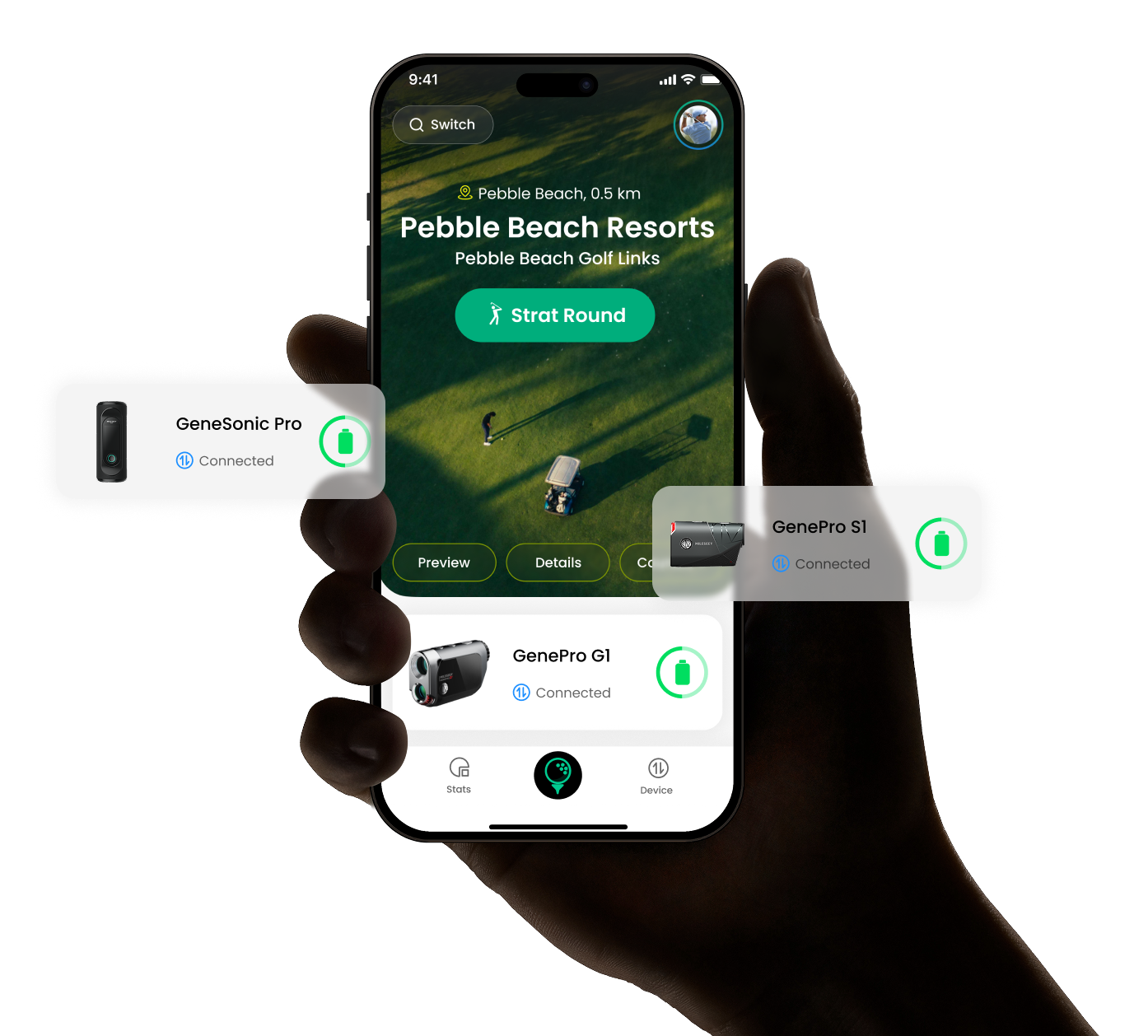
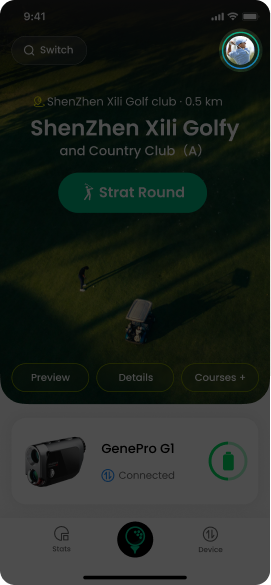
The Mileseey Golf App is your all-in-one GPS golf companion, built to guide your game, elevate your strategy, and make every round smarter and more enjoyable.

Supported Products: GenePro G1 | GenePro S1

MILESEEY GOLF APP

Your Smart Companion for Golf Enthusiasts

The Mileseey Golf App is your all-in-one GPS golf companion, built to guide your game, elevate your strategy, and make every round smarter and more enjoyable.

Supported Products: GenePro G1 | GenePro S1

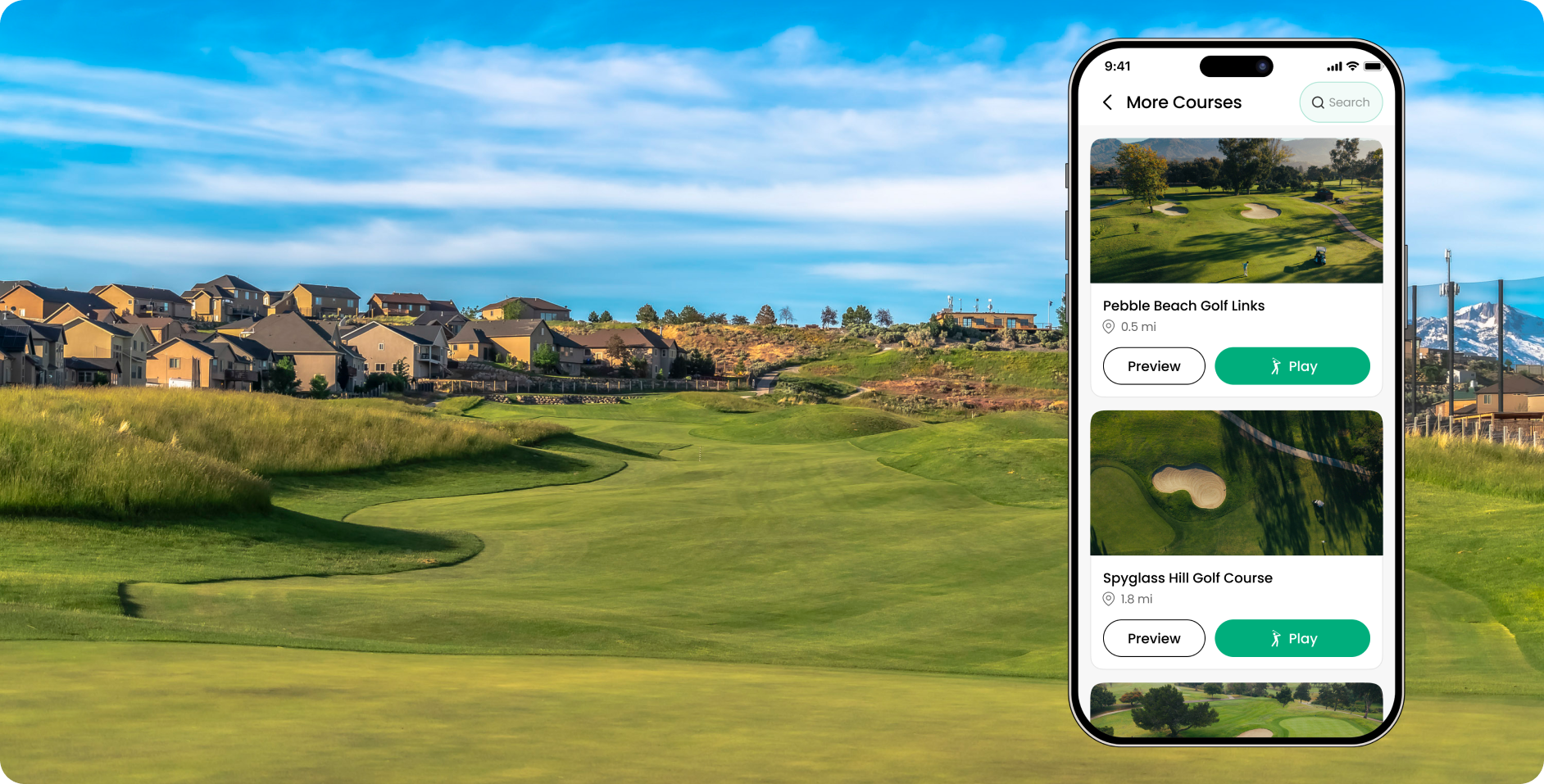
Global Course Data

Access over 43,000 golf courses worldwide with detailed layouts and course information, giving you confidence wherever you play.

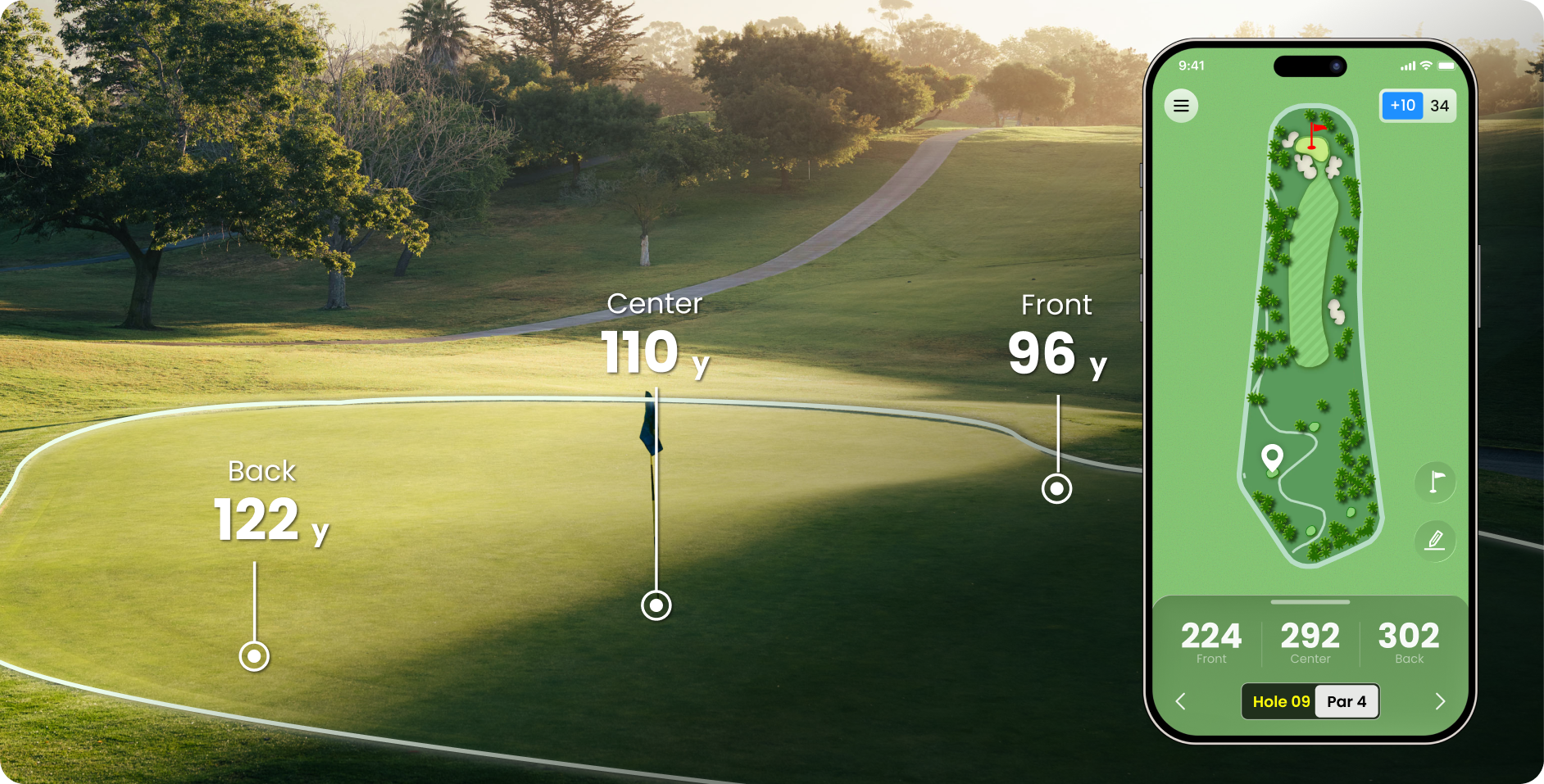
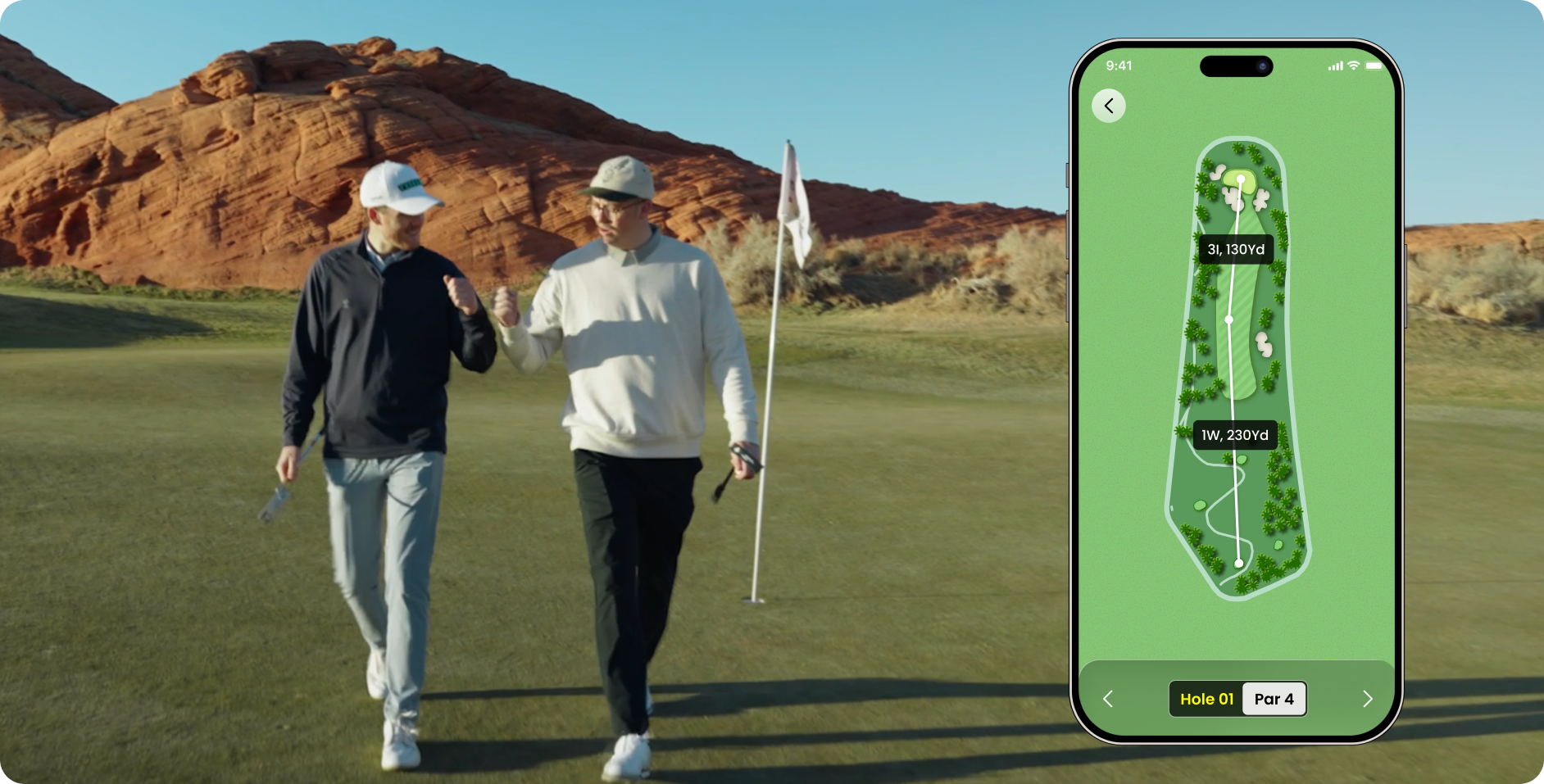
Dynamic F/C/B Yardages

GPS technology delivers accurate distances to the front, middle, and back of every green, helping you make smarter club selections.

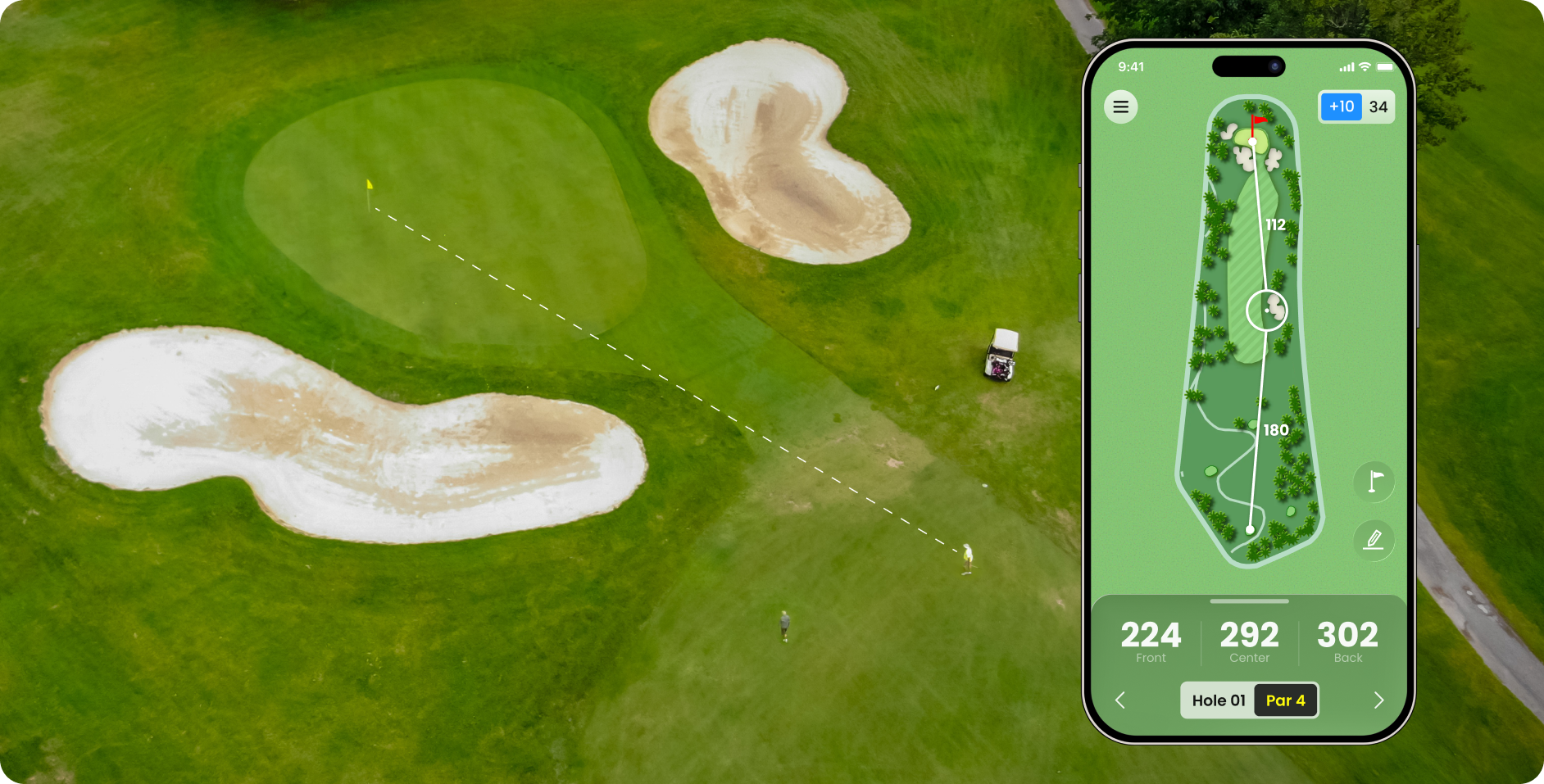
Hazard & Obstacle Distances

See real-time distances to bunkers, water, and other obstacles so you can avoid trouble and play with clarity.

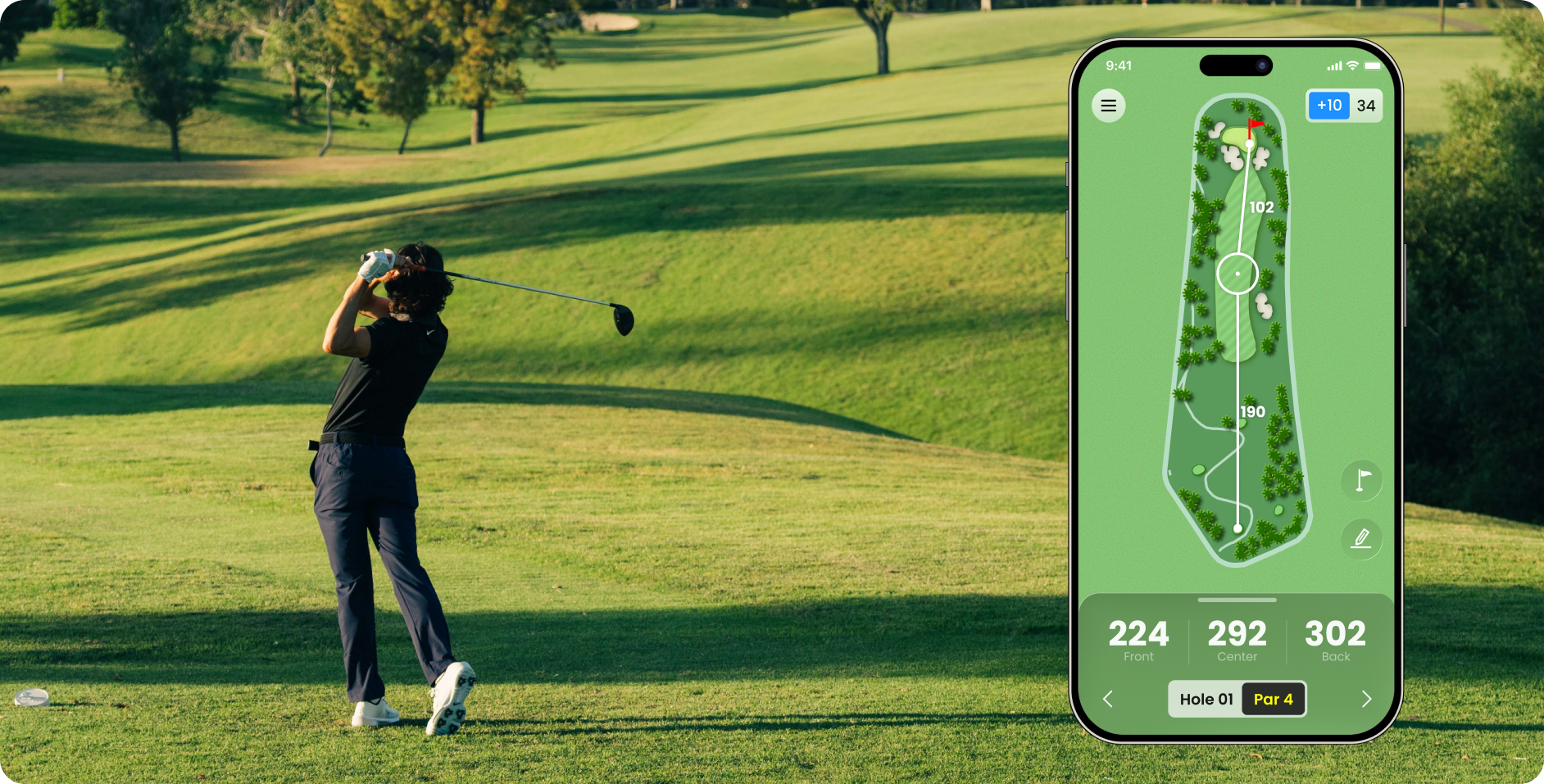
Smart Shot Planning

Plan your shots with movable markers that let you map out strategies and choose the best path to the pin.

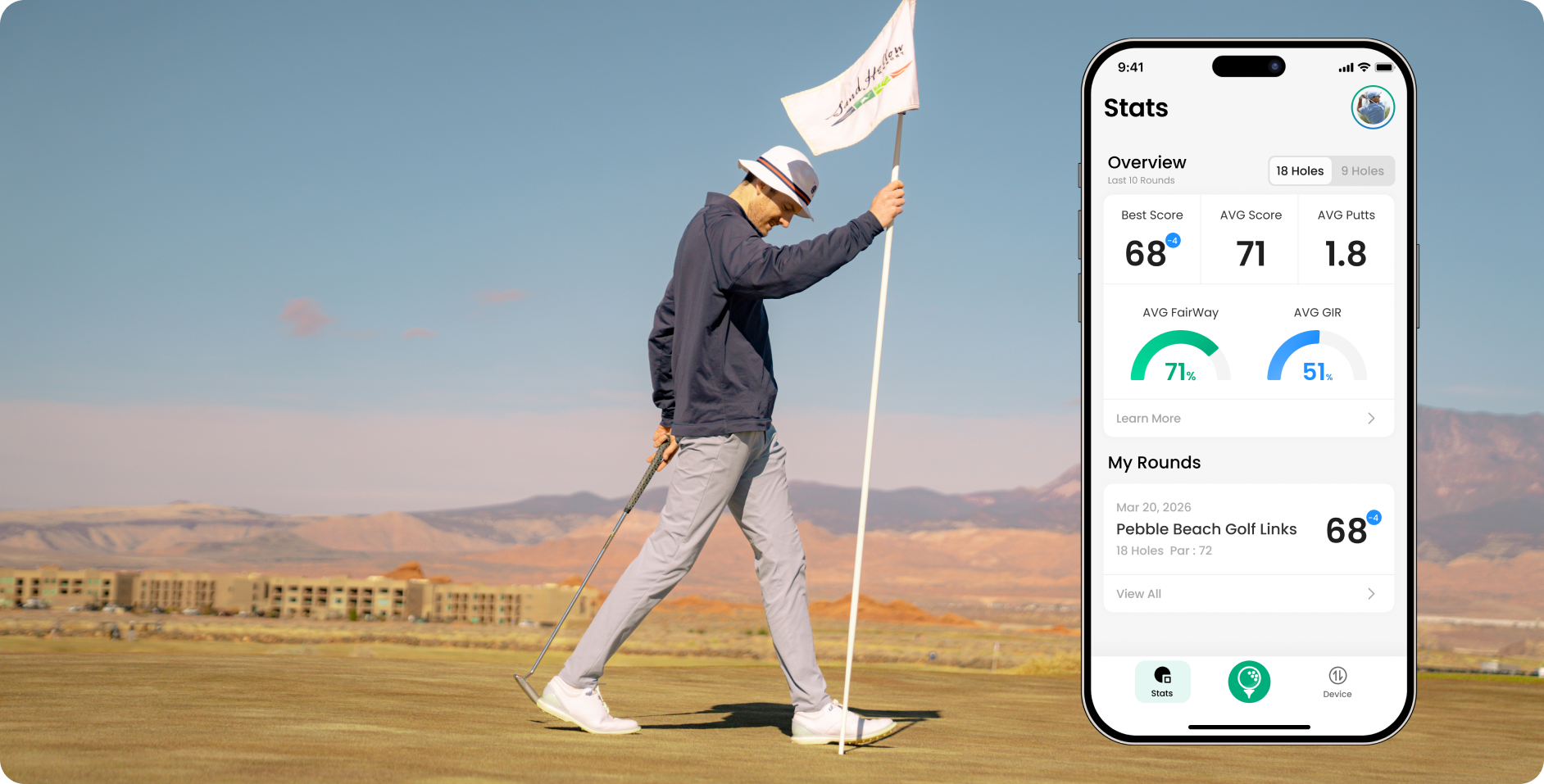
Round Tracking & Sharing

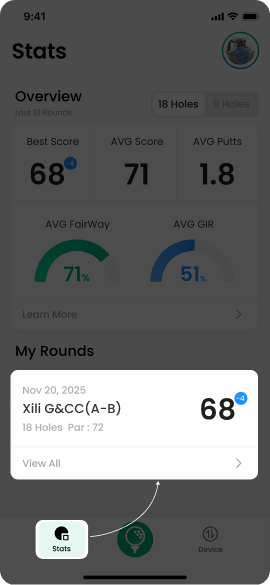
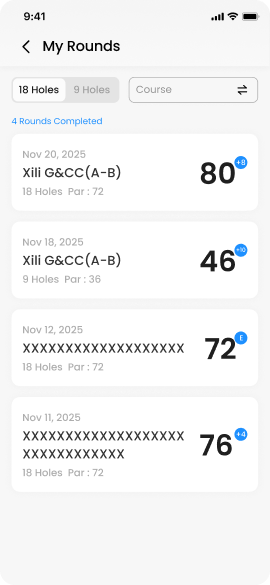
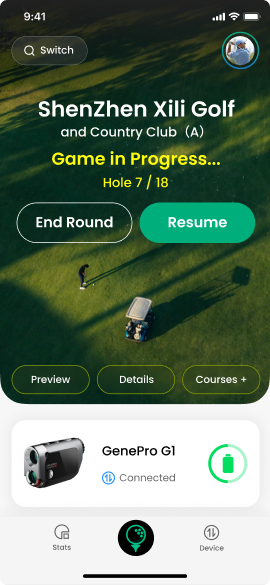
Easily track your rounds, record your progress, and share results with friends to celebrate your game improvements.

Performance Trend Charts

Automatically generate charts that highlight performance trends, making it easy to spot progress and areas for improvement.

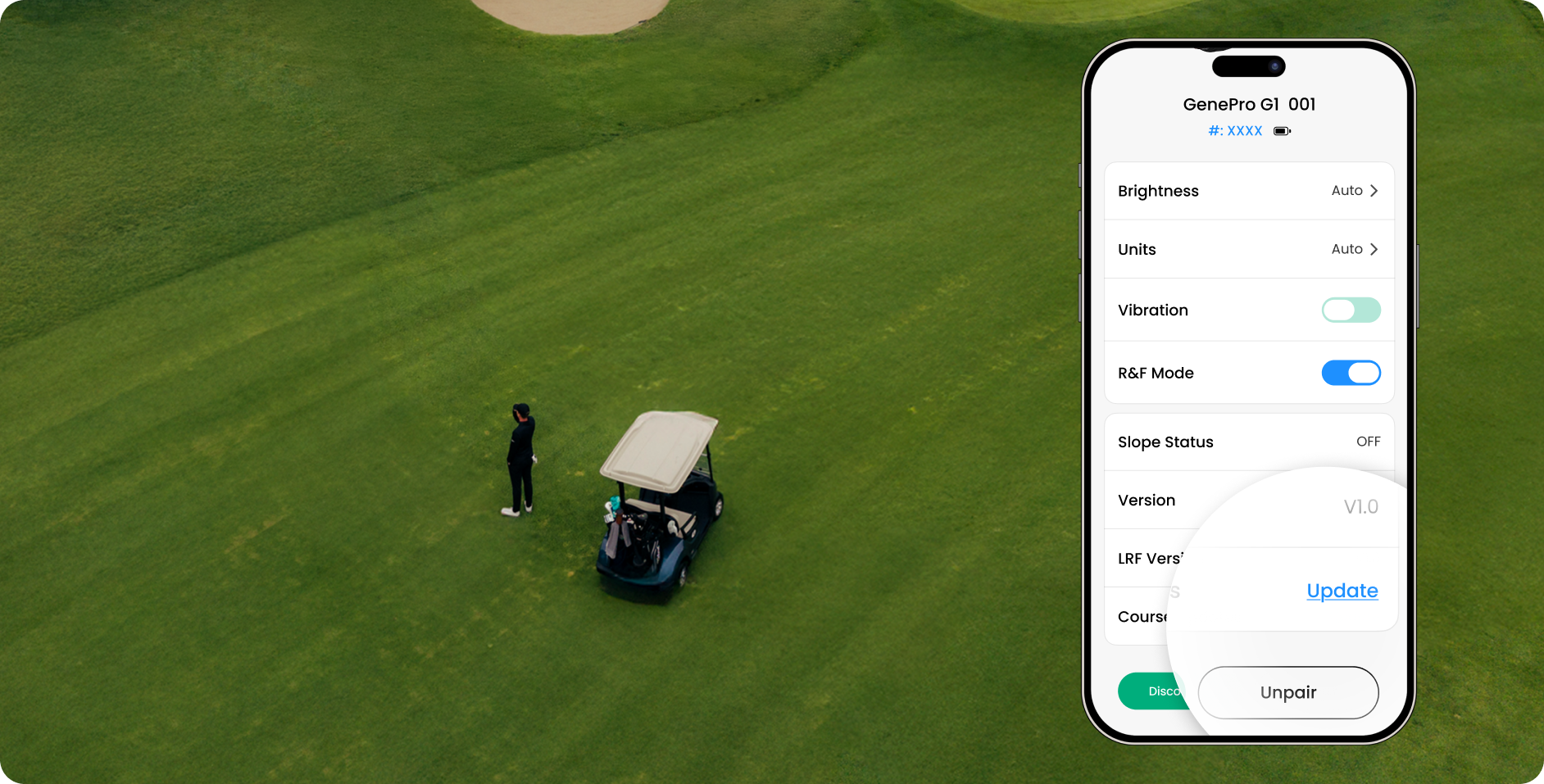
Effortless OTA Updates

Stay up to date with the latest course data through quick and free OTA updates.

Data Safety

Safety starts with understanding how developers collect and share your data. Data privacy and security practices may vary based on your use, region, and age. The developer provided this information and may update it over time.

*No data collected or shared with third parties.

FAQ

Installation & Account

How do I download and install the Mileseey Golf App?
You can find the Mileseey Golf App on the App Store (iOS) or Google Play (Android) — just search MILESEEY GOLF. If it’s not available in your region, visit mileseeygolf.com/pages/app-download to download the APK file. Seeing “Item not found”? That means your region isn’t supported yet — try the international version or use the official link above.
The App won’t open or keeps crashing — what should I do?
Make sure your phone runs iOS 13+ or Android 8.0+, and that the App has Bluetooth, Location, and Storage permissions enabled. If the issue continues, clear the cache or reinstall the latest version.
I can’t register or log in — what should I check?
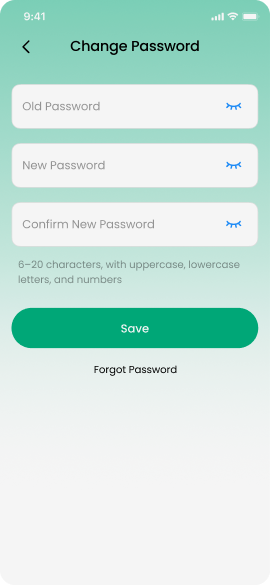
First, make sure your internet connection is stable. If the verification code doesn’t arrive, check your spam folder or wait a few minutes before trying again. You can also sign in with Facebook or Gmail for convenience.
Load More Show Less

Bluetooth & Data Sync

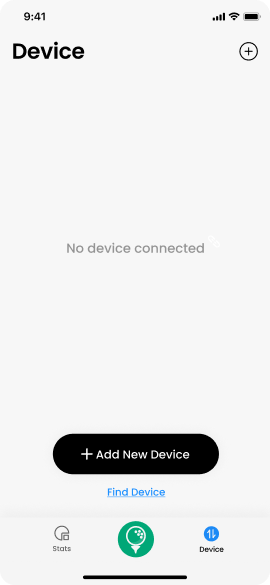
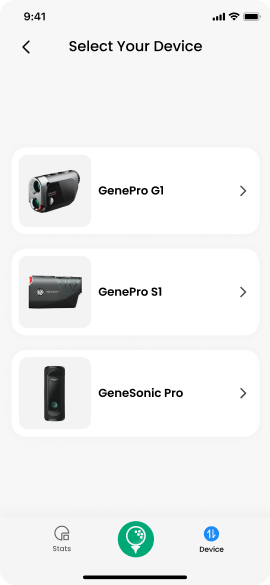
How do I connect my GenePro G1 to the App?
You can connect your G1 in two ways:
Method 1:
  • Turn on your G1 and go to the settings menu to make sure Bluetooth is enabled.
  • In the App, tap DEVICE+ ADD DEVICE → select GenePro G1 Laser Rangefinder.
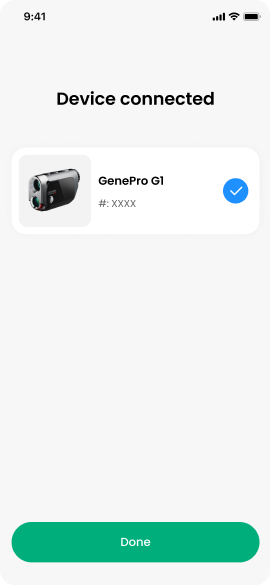
  • A message “Confirm to Connect?” will appear on your G1 — tap ✔ to confirm and wait for pairing.
  • A pop-up will appear once pairing is complete.

Method 2:
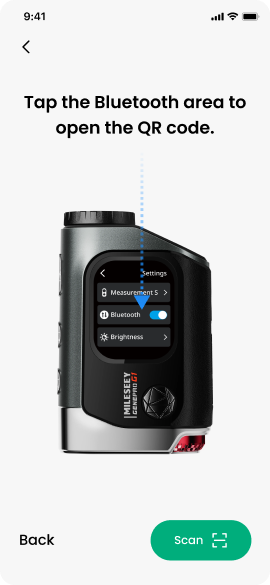
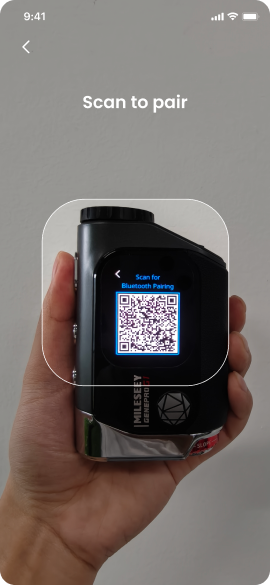
  • Turn on your G1, go to the settings menu, enable Bluetooth, and tap “Bluetooth” to open the QR code page.
  • In the App, go to DEVICE, then tap the QR code icon to enter the Pair Device page.
  • Use your phone’s camera to scan the QR code shown on your G1 screen, and wait for the pairing to complete.
  • A pop-up will appear once pairing is complete.
💡 Tip:
Make sure your phone’s Bluetooth is enabled and keep the G1 close to your phone during pairing for the best connection.
Why can’t I scan the QR code on the manual or box?
That code is only for downloading the App, not for connecting your device. Once you’ve installed the App, open DEVICE, select “GenePro G1 Laser Rangefinder” and follow the prompts to connect. If the QR code won’t scan, just search “MILESEEY GOLF” directly in your app store.
Bluetooth is connected but no data appears — what should I do?
Make sure the App has Bluetooth and Location permissions. If data still won’t sync, remove the G1 from your phone’s Bluetooth list and reconnect it through the App.
Load More Show Less

Features & Settings

Does the App include GPS course maps?
Yes. The Mileseey Golf App supports over 43,000 golf courses worldwide.It automatically locates your course and records each shot, distance, and score.
How can I review my past games or rounds?
You can review your past rounds by following these steps:
  •  Open the App and tap SCORE.
  • Find and tap the scorecard for the date and course you played.
  • Enter the sub-menu to view your full scorecard and detailed stats.
  • On some devices, you can also go to Round Tracking to check your shot traces and distance analysis for deeper insights.
How do I change the distance unit between yards and meters?
Open the app → tap STATS → tap the  top-right icon → go to More › select Yd or M in Unit Setings.
Tip: When your device is connected, the App automatically matches your device’s unit.
Load More Show Less